
Document Request for Tax Review: A Step-by-Step Guide
Table of Contents
- Overview
- Objective
- Platforms Involved
- Scope
- Use Case
- Workflow
- Exhibits / Appendices / Forms / Supporting Documents/Resources
- Change Control Log
Overview
When conducting a tax review, you may find the need to request additional documentation to complete your assessment. This guide outlines the process of sending a document request, ensuring that all necessary information is provided for a smooth workflow.
Objective
The primary goal of this guide is to help you efficiently request and obtain the necessary tax payment confirmations and related documents from members, ensuring they are correctly uploaded for review.
Platforms Involved
- Work Papers
- Zendesk
- State Tax Portals (e.g., MyFTB for California, MyConnect for Connecticut)
Scope
This guide applies to all tax review processes where additional documentation is required from members. It is relevant for tax professionals involved in reviews that necessitate member-supplied documents.
Use Case
This guide is specifically for scenarios where there is a need to verify tax payments and related details such as amount paid, date paid, period applied, and account holder's names.
Workflow
Step 1:
Begin by identifying the need for additional information during a tax review. This can be done from the documents or work papers. It is recommended to use the work papers, as this allows the information to pull directly once uploaded.
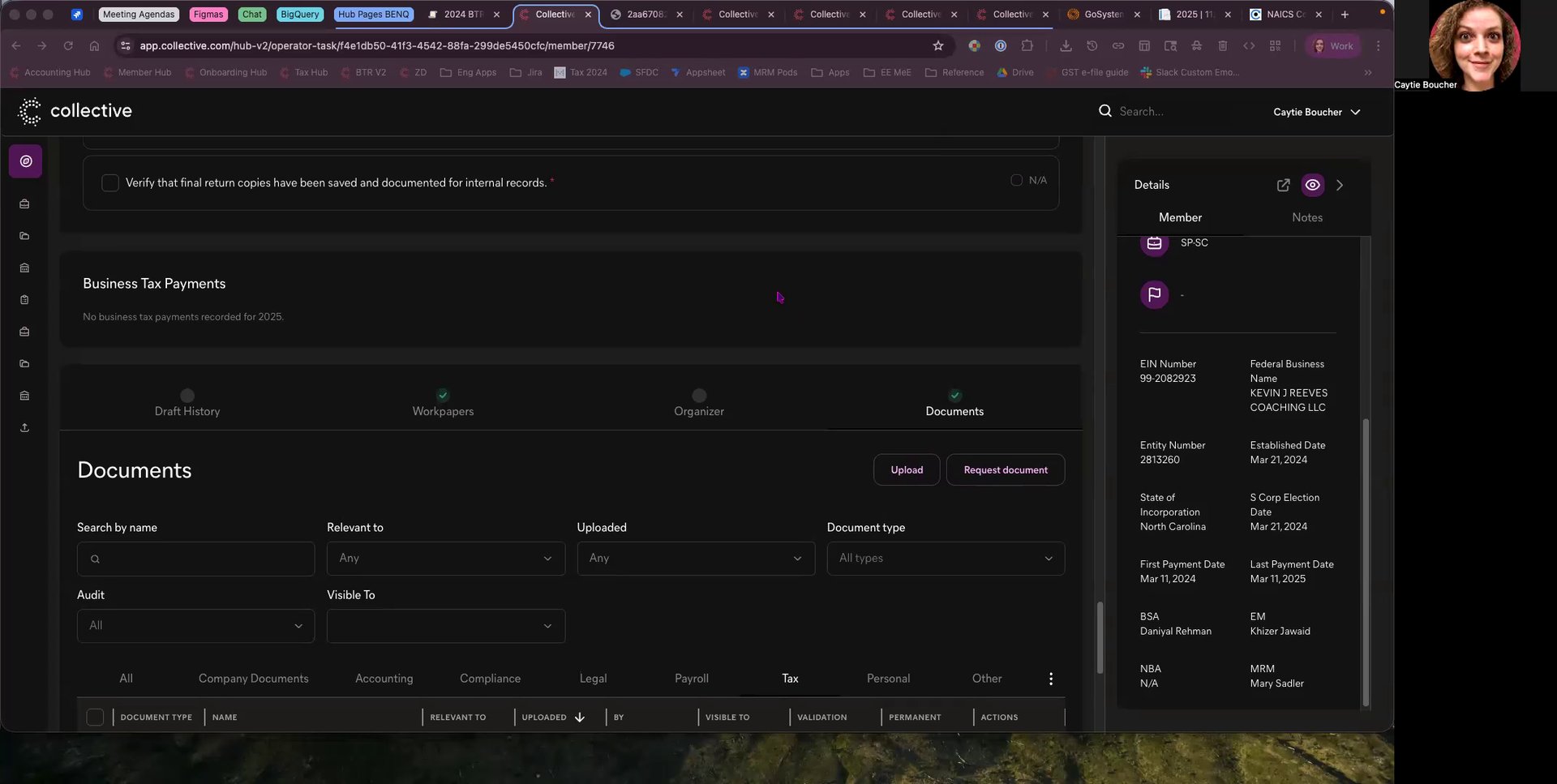
Step 2:
Request the necessary documents by specifying the type of document and the period required. For instance, if you need tax payment confirmations for 2025, specify this in your request.
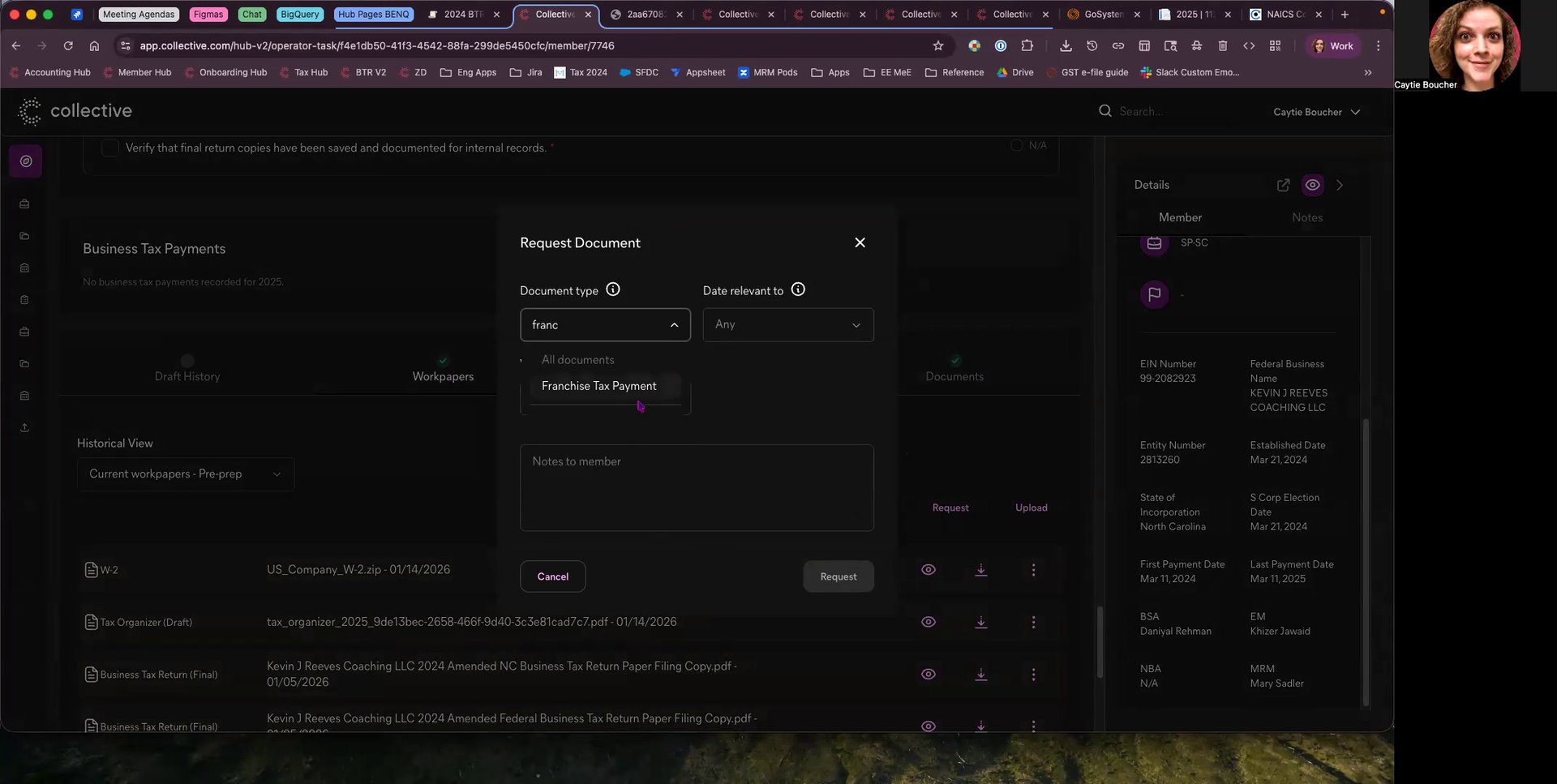
Step 3:
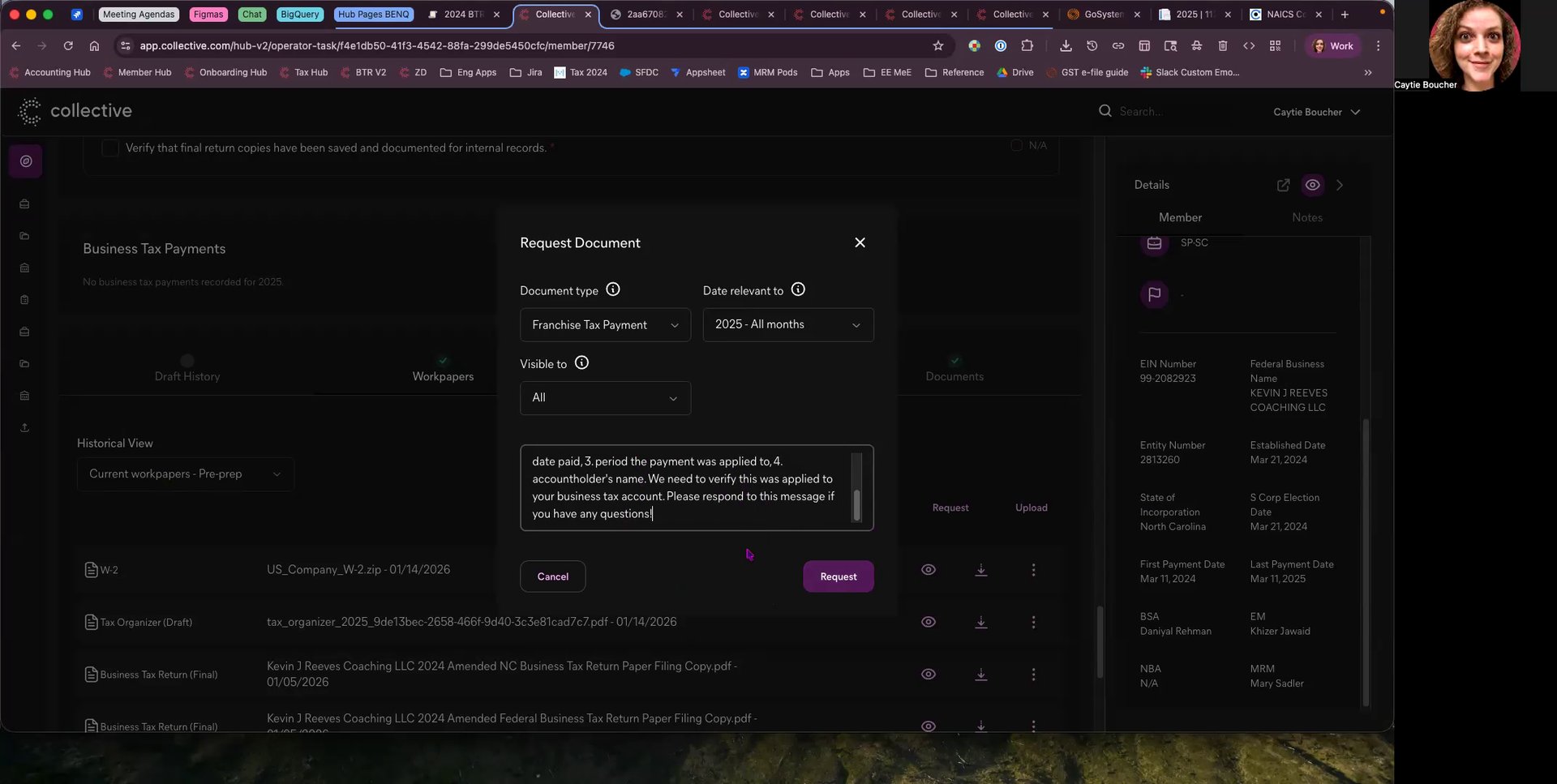
Communicate clearly with the member. Direct them to log into their respective state tax portals using business credentials to provide a screenshot of their payment history. Ensure the screenshot includes:
- Amount paid
- Date paid
- Period the payment was applied to
- Account holder's names
Once the message is composed with all the necessary details and in a professional tone, hit the request button. This will generate a Zendesk ticket, allowing the member to respond or request further clarification if needed. Ensure that the document type and period are correctly selected to avoid confusion.
Exhibits / Appendices / Forms / Supporting Documents/Resources
No additional documents are referenced in this guide. Ensure all instructions are followed as outlined.
Change Control Log
- Version 1.0 - Initial guide creation and publication.
© 2026 Reflow, Terms of Service | Privacy Policy